



Blog

How to Choose the Right Lumbar Support for Your Body Type

How to Choose the Right Lumbar Support for Your Body Type

Finding the perfect office chair isn’t just about the cushion; it’s about how the backrest interacts with your unique anatomy. A lumbar support that feels like a dream to a petite user might feel like a painful lump to someone with a larger frame. If you want to eliminate midday backaches, you must learn how to choose lumbar support that suits your body type. Let’s explore how to match your physical profile with the right ergonomic technology to ensure lasting comfort.

Why One-Size-Fits-All Lumbar Support Fails

Most office chairs have a fixed curve in the backrest. However, everyone’s spine is different, and the lower vertebrae sit at different heights depending on your torso and hips. If the support is in the wrong spot, it can cause muscle fatigue and poor posture. To solve this, look for an ergonomic chair with adjustable lumbar support or one made from flexible materials.

Lumbar Support for Posture Correction and Spinal Health

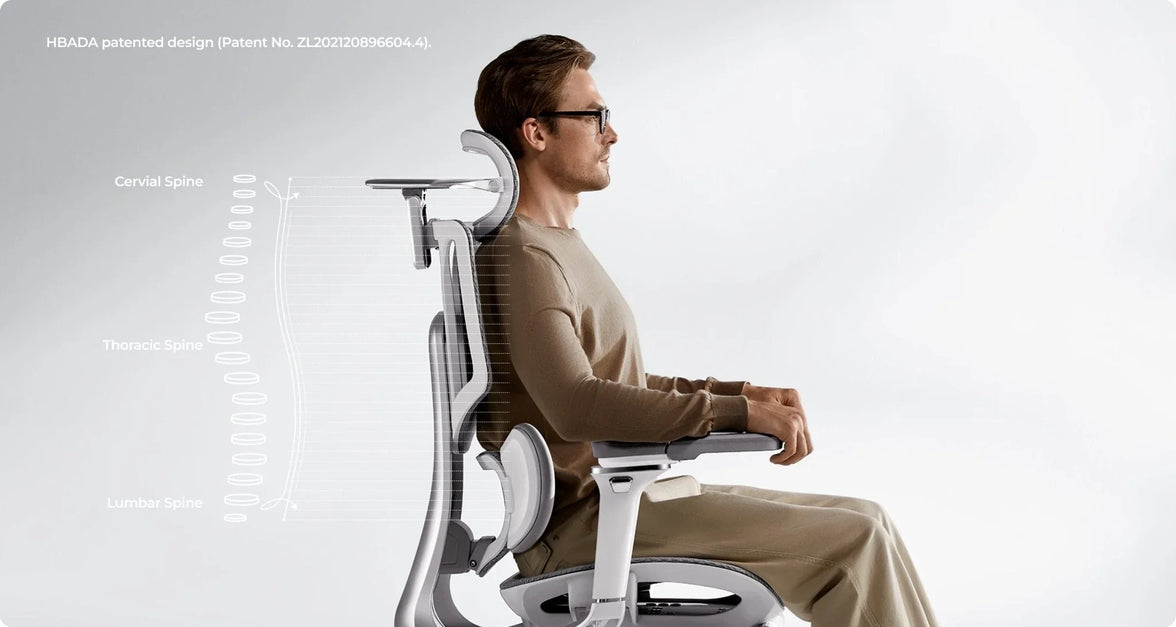
The primary goal of any backrest is to maintain the natural inward curve of your lower spine. Proper lumbar support for posture correction and spinal health acts as a physical reminder for your body to sit upright. Filling the gap between your lower back and the chair, it prevents the “C-slouch” that compresses spinal discs. For the best results, look for a high-back ergonomic chair that supports the entire length of your back, not just the base.

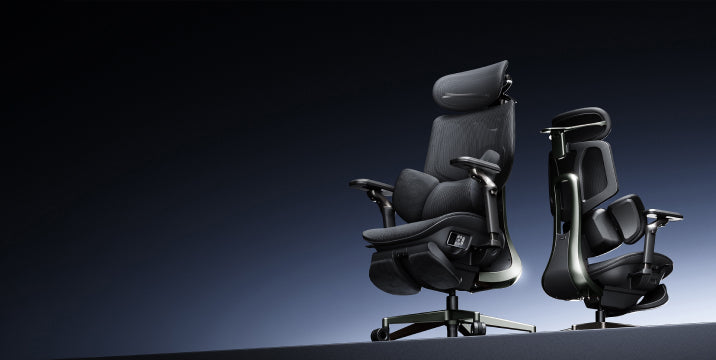
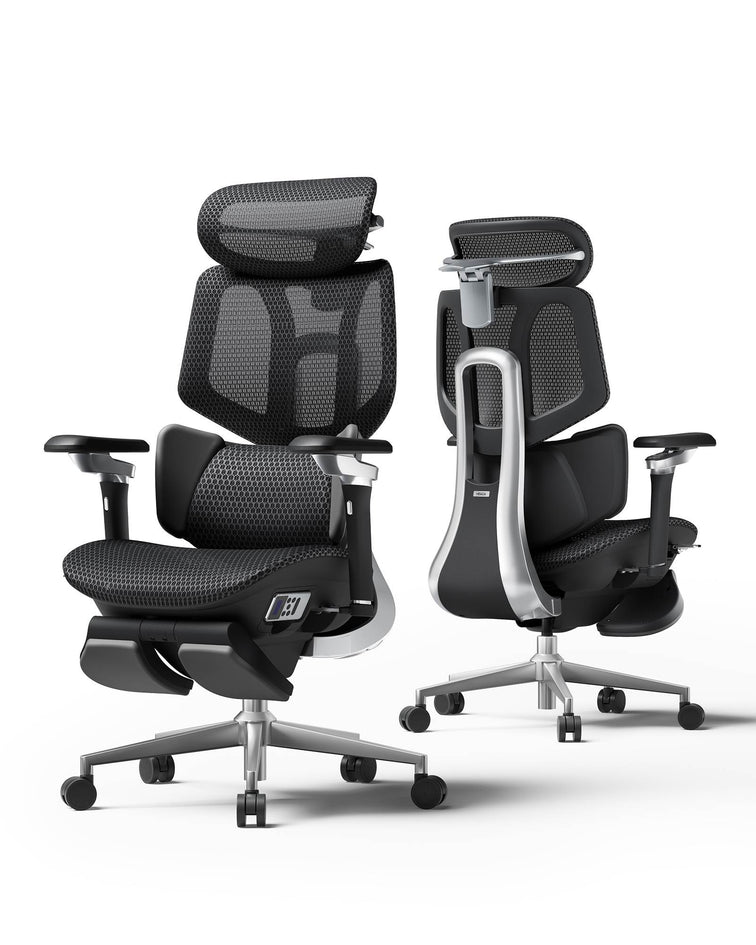
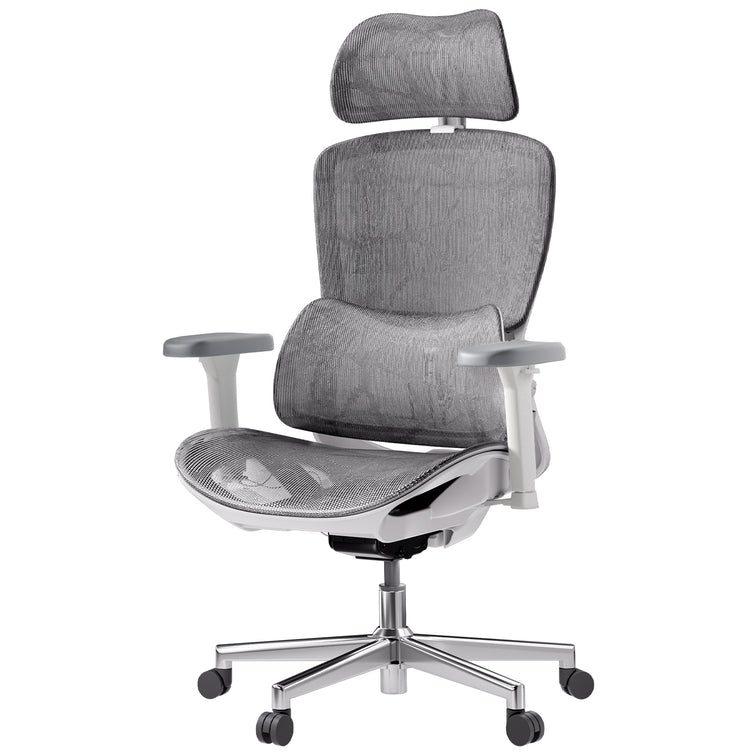
meet e3 pro 2026 of first 3-zone elastic lumbar support

Identifying Your Body Type and Support Needs

To choose the best office chair for your body, start by thinking about your height and body shape.

1. Petite and Average Frames

If you have a shorter torso, the depth of the lumbar support matters more than its height. Too much support can push you forward in your seat. Look for a chair with adjustable lumbar height so you can set the support right at the small of your back.

2. Tall and Large Frames

Finding an ergonomic chair for tall people with lumbar support can be a challenge. Tall users often find that standard lumbar “humps” hit them at the top of the pelvis rather than the lower back. A high-back ergonomic chair for spinal alignment is non-negotiable here. It ensures the lumbar zone can be raised high enough to comfortably reach the L1-L5 vertebrae.

3. Users with Existing Chronic Pain

If you already have back pain, you need an ergonomic chair that does more than just adjust in height. Look for a chair that helps spread your weight away from your spine to reduce pressure and discomfort.

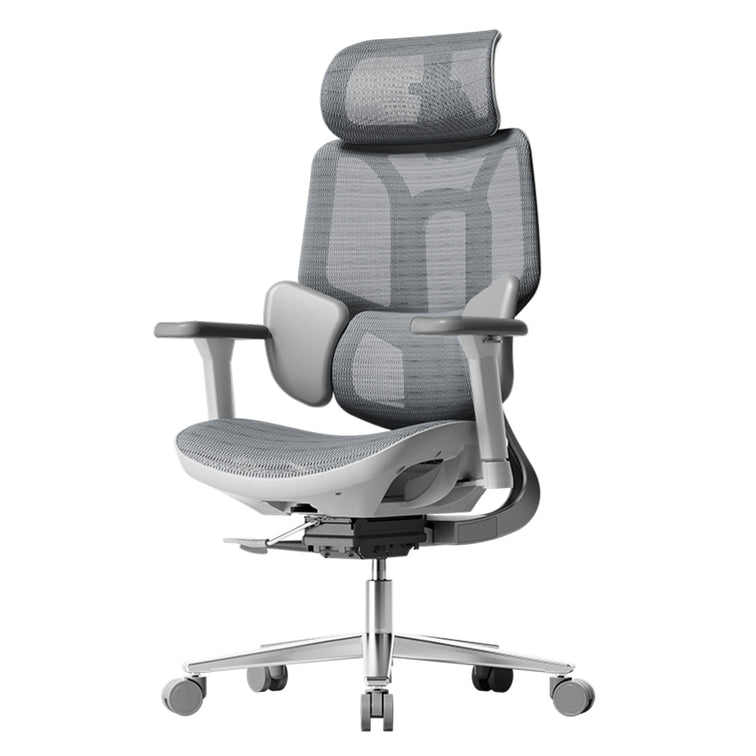
does a standing desk burn more calories

The Solution for 3-Zone Dynamic Lumbar Support

Most chairs only support your back in one spot. Our 3-zone dynamic lumbar support chair is different. It divides the backrest into three sections that move independently to better fit your back.

Benefits of the Best Ergonomic Chair with 3-Zone Lumbar Support

A chair with 3-zone lumbar support provides full back support. The middle part supports your spine, while the sides help the muscles on each side of your back. This design works especially well for people with wider hips or backs, since the side wings adjust to fit your shape.

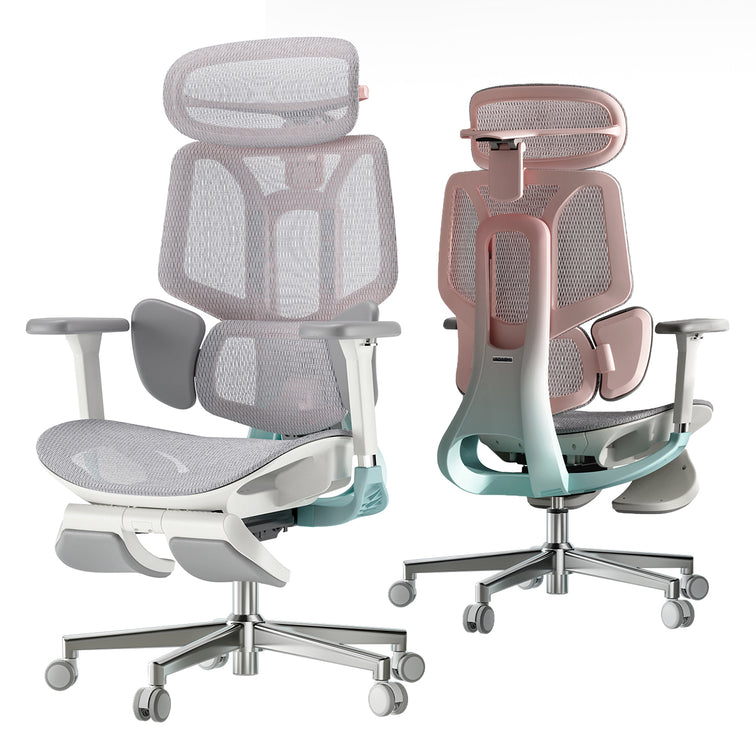
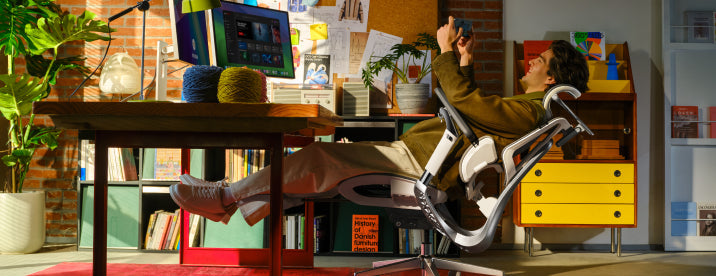
best pink ergonomic chair with 3 zone elastic lumbar support

Advanced Technology, Adaptive Tracking and AI

By 2026, office chairs will no longer rely on manual knobs. If you want a chair, you can adjust it once and not worry about it; adaptive technology is the way to go.

The Adaptive Lumbar Tracking Ergonomic Chair

An adaptive lumbar tracking chair uses sensors to keep the support in contact with your back as you move. Whether you lean forward to type or lean back to relax, the support stays with you. This way, your lower back is always protected.

Hbada AI-Powered x7: The Peak of Personalization

For the best fit for any body type, we suggest the Hbada AI-Powered x7. It uses sensors to track your posture in real time. No matter your height, the chair automatically changes the lumbar support to match your needs. It helps you stay in the best position for your back.

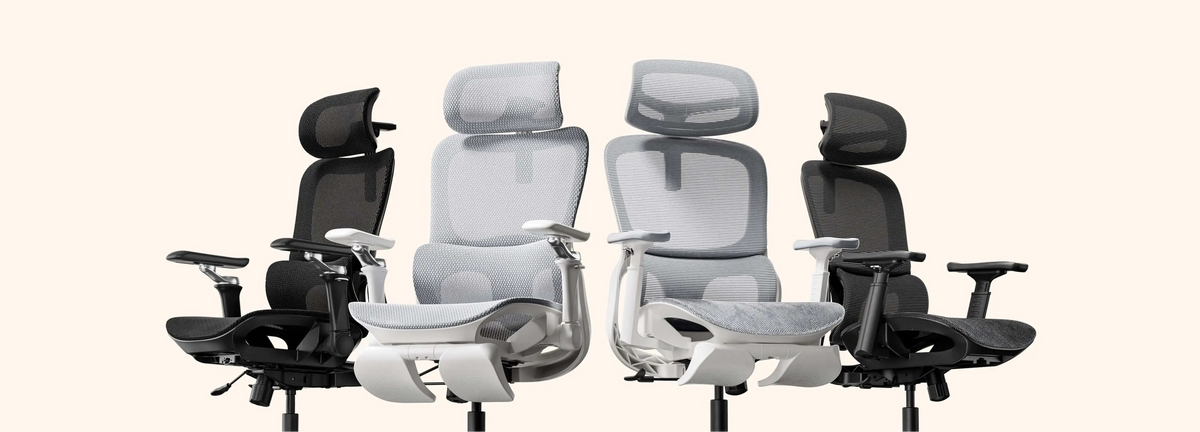
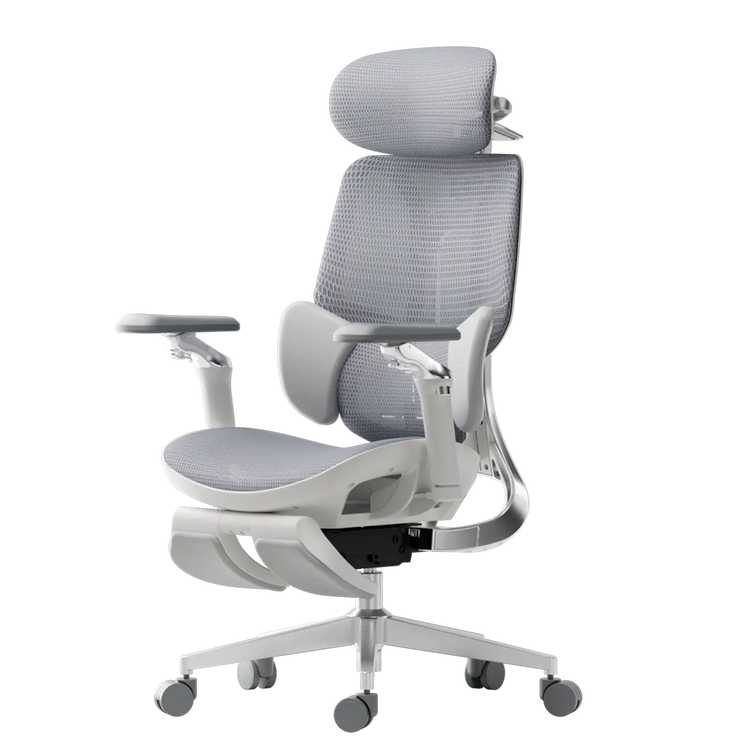
Hbada E3 Series 2026 Ergonomic Chair — Mobile Home Page Section

Comparison of Support Technologies

Feature Standard Ergonomic 3-Zone Dynamic Hbada AI-Powered x7
Adjustment Type Manual Knob/Slide Flex-Wing Gravity Fully Automated
Body Type Fit Limited Broad Range Universal Adaptation
Support Feel Firm/Static Wrap-around/Supportive Adaptive/Bio-sync
Best For Short-term use Best for back pain Long-term Spinal Health

Frequently Asked Questions (FAQ)

Q: How do I know if the lumbar support is in the right spot? A: The lumbar support should fit comfortably in the curve of your lower back, just above your belt. It should feel firm but not hurt. If your shoulders are pushed forward or your feet lift off the floor, the support is probably too low or too strong.

Q: Is a mesh backrest better than foam for lumbar support? A: Mesh is usually better for fitting different body types. Foam can lose its shape over time, but strong mesh stays supportive and feels more flexible. Mesh chairs also let air flow through and fit your body’s shape more naturally.

Q: Does lumbar support really help with sciatica? A: Yes. Sciatica often happens when discs in your lower back are pressed too much. An adaptive lumbar tracking chair can help take pressure off those discs, which may ease the nerve pain that causes leg discomfort.

Q: Why should tall people avoid “mid-back” chairs? A: Mid-back chairs usually have lumbar support that sits too low for tall people, which can make you hunch over. Tall users should pick a high-back ergonomic chair so the headrest and lumbar support fit their height.

Conclusion

Everyone’s body is different, so your office chair should fit you. The right lumbar support can mean the difference between feeling good at the end of the day and having back pain. Look for features such as 3-zone support and adaptive tracking to help keep your spine healthy. Don’t settle for a chair that doesn’t fit—choose one like the Hbada AI-Powered x7 that adjusts to you. Your back deserves the best support.
Relevant Product

You May Also Like

How a HBADA Ergonomic Chair Can Improve Your Work-From-Home Productivity How a HBADA Ergonomic Chair Can Improve Your Work-From-Home Productivity Working from home can remove the commute and many office distractions, but it can introduce a different problem: a workspace that was never designed for a full working day. If you regularly shift position, feel too warm, or struggle to find comfortable support, part of your attention may be going to your chair instead of your work. Quick answer: An ergonomic chair does not automatically make someone more productive. However, a properly adjusted chair can reduce physical distractions by supporting a more comfortable working position, accommodating movement and limiting heat buildup. That can make it easier to remain focused during meetings, writing, analysis and other desk-based work. Below, we explain the practical connection between ergonomic chair productivity and everyday work-from-home performance—and how to choose and adjust a chair for your routine.   Table of Contents Why Your Chair Can Affect Focus The Hidden Cost of an Uncomfortable Chair How Lumbar Support Can Reduce Distractions Why Staying Cool Matters Posture, Movement and Working Energy Features That Support Productive Work Matching an HBADA Chair to Your Work Style Setting Up Your Chair for Better Focus A Chair Is Only Part of a Healthy Work Routine Frequently Asked Questions Why Your Chair Can Affect Focus More Than You Think Focus is easier to maintain when you are not repeatedly thinking about your seating position. If your back feels unsupported, your shoulders are raised or your legs feel uncomfortable while sitting, you may begin shifting, leaning or leaving your desk more often than the task requires. These small interruptions do not always feel significant in isolation. Over a long working day, however, repeatedly adjusting your position can break the rhythm of focused work and make long meetings feel more demanding. This is the realistic connection between an ergonomic chair and productivity: the chair supports the conditions for focused work by reducing avoidable physical friction. It cannot create motivation, organise your schedule or complete a task for you. The Hidden Cost of an Uncomfortable Chair An uncomfortable chair can affect how you approach the working day. You may postpone a task that requires extended concentration, leave the desk during an important workflow or adopt an awkward position simply because it feels better for a few minutes. A suitable ergonomic chair gives you more ways to adapt the workspace to your body. Depending on the model, adjustable seat height, seat depth, armrests, recline and lumbar support can help you create a position that feels more natural for typing, reading and video calls. The goal is not to hold one supposedly perfect posture all day. A productive setup should support comfortable alignment while still allowing you to change position and take regular movement breaks. How Lumbar Support Can Reduce Physical Distractions The lumbar region is the inward curve of the lower back. When the backrest does not meet this area comfortably, some people compensate by slouching, sitting on the edge of the seat or repeatedly changing position. Adjustable lumbar support lets you position the support closer to your natural lower-back curve. Dynamic systems go a step further by allowing the support to respond as you lean, recline or shift position. For example, the HBADA X7 Smart Ergonomic Chair uses sensors and a motorised system that HBADA describes as AI Smart Lumbar Tracking. It is designed to adjust the depth of lumbar support as the user’s position changes. The HBADA E3 Series takes a mechanical approach. Its three-zone lumbar design combines central support with side sections intended to adapt around the waist. These different approaches share one objective: maintaining more consistent contact between the chair and the lower back. A well-fitted lumbar system may reduce the need for constant manual adjustment, leaving fewer physical distractions competing with the work on your screen. If lumbar support feels overly firm or pushes you forward, however, reduce its depth or reposition it. More pressure is not automatically better support. Why Staying Cool Matters During Focused Work Heat buildup can become another source of distraction during long calls or deep-work sessions. A warm seat or backrest may lead to more shifting, especially in summer or in rooms with limited airflow. Many ergonomic chairs use breathable mesh to improve passive airflow. The HBADA X7 also includes a ventilated seat with three airflow settings powered by dual fans, according to the current product specifications. Cooling does not directly increase productivity, but it can remove one more reason to interrupt a task. Room temperature, clothing and individual preferences still influence how comfortable the seating surface feels. Posture, Movement and Working Energy Ergonomics is not about remaining completely still. Even a well-supported sitting position can become uncomfortable when held for too long. A better strategy is to begin from a balanced working position and change posture regularly. For keyboard work, aim to keep your feet supported, elbows close to your sides and shoulders relaxed. The screen should be positioned so you can view it without repeatedly bending your neck forward. Your chair should let you recline slightly when appropriate instead of forcing your torso into a rigid vertical position. Movement remains essential. The US National Institute for Occupational Safety and Health (NIOSH) notes that workers should avoid sitting or standing for too long and reports that short hourly breaks can help reduce discomfort among computer users. In practice, productive home working usually combines supportive equipment with brief standing, walking and stretching breaks. These pauses can be attached to natural transitions such as finishing a meeting, sending a report or refilling a drink. Quick Reference: Chair Features That Support Productive Work Feature Practical Benefit What to Check Adjustable lumbar support Supports the lower-back curve and may reduce repeated repositioning. The support should meet your lower back without forcing you forward. Seat-height adjustment Helps align the chair with the desk and keep the feet supported. Confirm that the adjustment range suits your height and desk. Adjustable seat depth Helps support the thighs without pressing into the backs of the knees. Leave a small, comfortable space behind the knees. Adjustable armrests Provide somewhere to rest the forearms during typing or mouse use. Armrests should not raise the shoulders or prevent access to the desk. Controlled recline Allows posture changes during reading, calls and short breaks. Choose a work angle that still keeps the keyboard and screen accessible. Breathable or ventilated materials May limit distracting heat buildup during extended sitting. Consider the temperature and ventilation of your home office. Matching an HBADA Chair to Your Work-From-Home Style The most feature-rich chair is not automatically the best choice for every person. Start with your working hours, preferred adjustments, climate and budget, then compare those needs with the chair’s current specifications. Work-From-Home Need Model to Consider Relevant Features Long workdays and frequent position changes HBADA X7 AI Smart Lumbar Tracking, ventilated seat, adjustable seat depth and multi-directional armrests. Detailed mechanical adjustment and targeted lumbar support HBADA E3 Pro Three-zone lumbar system, adjustable headrest, armrests and seat depth. Everyday desk work with a simpler feature set HBADA E3 Air Three-zone dynamic lumbar support, breathable mesh and practical adjustments. Work sessions combined with deeper recline during breaks HBADA E3 Ultra Three-zone lumbar support, extended armrest adjustment and footrest configuration. Product note: Features, configurations, prices and availability may change. Check the current product page and selected variant before purchasing. How to Set Up Your Chair for Better Focus Even a highly adjustable chair will not provide its intended support if the settings do not match the user and workstation. Use this sequence as a practical starting point: Sit fully against the backrest. Avoid perching on the front edge while completing long periods of keyboard work. Set the seat height. Keep your feet supported by the floor or a footrest, with the knees in a comfortable, open position. Adjust the seat depth. Support most of the thighs without placing pressure directly behind the knees. Position the lumbar support. Align it with the inward curve of your lower back and reduce the depth if it feels intrusive. Lower the shoulders. Bring the armrests under the forearms without pushing the shoulders upward. Bring work closer. Position the keyboard, mouse and screen so you do not repeatedly reach or lean forward. Test and readjust. Use the chair for a normal task, then make small changes instead of changing several settings at once. For more detailed instructions, see our guide on how to adjust an ergonomic chair for better comfort. A Chair Is Only Part of a Healthy Work Routine A supportive chair can reduce physical distractions, but it cannot replace movement, rest, task planning or sensible working hours. Hydration, sleep, workload and the way you organise focused work also influence productivity. Avoid treating any chair as permission to remain seated without interruption. Change position regularly and take brief movement breaks throughout the day. If possible, alternate between sitting, standing and walking rather than looking for one posture to maintain continuously. Health note: An ergonomic chair is not a treatment for back pain, numbness or another medical condition. Persistent, severe or worsening symptoms should be discussed with a qualified healthcare professional or physiotherapist. Frequently Asked Questions Does an ergonomic chair really improve productivity? It can support productivity indirectly. A properly adjusted chair may reduce discomfort, heat buildup and repeated repositioning, making it easier to concentrate. Research does not support treating a chair as a guaranteed or stand-alone productivity booster. Which HBADA chair is suitable for long work-from-home days? The HBADA X7 is designed for users who want automatic lumbar adjustment and an actively ventilated seat. The E3 Pro and E3 Ultra offer extensive mechanical adjustment, while the E3 Air provides a simpler configuration for everyday desk work. The best option depends on your body dimensions, preferred support, workspace and budget. Can a chair fix a lack of focus? No. A chair can reduce some physical distractions, but focus also depends on workload, sleep, breaks, noise, digital interruptions and how tasks are organised. How should lumbar support feel? Lumbar support should make comfortable contact with the inward curve of the lower back. It should not feel like a hard object forcing the torso forward. Adjust its height and depth gradually until it supports you without creating a new pressure point. Does a breathable chair help with focus? Breathable mesh or an actively ventilated seat can help limit heat buildup, which may reduce one source of distraction. Its effect will depend on room temperature, clothing, sitting time and personal preference. How long does it take to adjust to a new ergonomic chair? There is no universal adjustment period. Some people find suitable settings quickly, while others need several work sessions to refine the seat, armrest, recline and lumbar positions. Change one setting at a time and do not continue using a position that causes pain or numbness. Should I still take breaks when using an ergonomic chair? Yes. An ergonomic chair is designed to support sitting, not eliminate the need to move. Stand, walk or change position regularly during the working day. Final Thoughts The connection between an ergonomic chair and productivity is practical rather than magical. When your chair fits your body, supports movement and reduces avoidable discomfort, you have fewer physical distractions competing for attention. Whether you prefer the X7’s automatic lumbar tracking and ventilated seat, the E3 Pro’s adjustable three-zone support or the more streamlined E3 Air, choose according to fit and working habits—not the longest feature list. Set the chair up carefully, continue moving throughout the day and let your workspace support the work instead of interrupting it. Product features referenced in this article are based on HBADA product information available at the time of writing. Specifications, configurations and availability may change.   How to Adjust Your Ergonomic Chair for Correct Sitting Posture and Back Pain Relief How to Adjust Your Ergonomic Chair for Correct Sitting Posture and Back Pain Relief  Contents Why adjusting your chair mattersStep-by-step: how to adjust your ergonomic chair1. Set the right seat height2. Adjust seat depth for balance3. Fine-tune the lumbar support4. Recline and tilt tension5. Set armrest and headrest properlyWhen to consider an upgradeExpert tips for long-term comfortFrequently asked questionsFinal thoughts Why Adjusting Your Chair Matters Back pain is one of the most common problems for people who work at a desk. On average, office workers spend over 1,800 hours a year sitting, and a poorly adjusted chair can strain your lower back, neck, and shoulders. An ergonomic chair — especially one with adjustable lumbar support — can make a major difference. When adjusted correctly, it promotes healthy spinal alignment, improves blood circulation, and helps prevent long-term discomfort. Let’s explore how to fine-tune your chair for the perfect posture. Step-by-Step: How to Adjust Your Ergonomic Chair for Proper Posture 1. Set the Right Seat Height Your feet should rest flat on the floor, with your knees at a 90° angle. Adjust the seat height so your thighs are parallel to the ground. ✅ Tip: If your chair is too high, use a footrest. If too low, raise it to avoid putting pressure on your thighs. 2. Adjust Seat Depth for Balance Leave a 5–7.5 cm (2–3 inch) gap between the edge of your seat and the back of your knees. This allows healthy blood flow while keeping your lower back supported. If your chair allows, slide the seat pan forward or backward until you feel comfortably balanced. 3. Fine-Tune the Lumbar Support Proper lumbar positioning is crucial for relieving lower back pain. Adjust the lumbar support height and depth until it fits naturally into the curve of your spine. A well-fitted office chair with adjustable lumbar support helps your body maintain its natural S-shape — reducing pressure and fatigue during long sitting hours. 4. Recline and Tilt Tension Your backrest recline angle should be between 95–110°, supporting slight movement while keeping your spine aligned. Use the tilt tension knob to find resistance that allows you to lean back gently — this encourages active sitting and prevents stiffness. 5. Set Armrest and Headrest Properly Armrests: Keep your elbows at a 90° angle. This reduces tension in your shoulders and wrists. Headrest: Adjust it so it supports the middle of your head, not your neck, when you’re leaning back. ✅ Tip: A fully adjustable office chair gives you personalized control over every ergonomic setting — ideal for home offices or long workdays. When to Consider an Upgrade If you find that your current chair doesn’t allow enough flexibility or support, it might be time for an upgrade. A modern ergonomic posture chair or ergonomic zero gravity chair offers advanced lumbar tracking, breathable mesh comfort, and multi-point adjustability that traditional chairs lack. 👉 Explore HBADA’s ergonomic chair collection:Shop HBADA Office Chairs — including the E3 Pro, X7 Smart, and P2 Ergonomic Chair, all designed for long-hour comfort and back health. Expert Tips for Long-Term Comfort Take breaks every hour and stand or stretch. Keep your monitor at eye level to reduce neck strain. Combine your desk chair adjustment with proper desk height and keyboard placement. Choose breathable mesh chairs for ventilation — no more sweat or stiffness during long hours. Frequently Asked Questions Q: How do I adjust my ergonomic chair? To properly adjust your ergonomic chair for maximum comfort and posture support, it is best to adjust it from the ground up. Follow these 5 expert steps: Seat Height:Use the pneumatic lift to raise or lower the seat until your feet are completely flat on the floor and your knees are at a 90-degree angle. Seat Depth:Slide the seat pan so there is a 5–7 cm gap (about three fingers wide) between the front edge of the seat and the back of your knees to ensure proper blood circulation. Lumbar Support:Adjust the backrest or lumbar pad up and down so it snugly fits into the natural curve of your lower back. Armrests:Adjust the armrests so your elbows bend at a 90-degree angle. Your shoulders should be completely relaxed, not hunched. Backrest Tilt:Set the recline angle between 95° and 110° to reduce pressure on your spinal discs. Q: What is the 90-90-90 rule in ergonomics? The 90-90-90 rule is a foundational ergonomic principle designed to maintain a neutral posture and prevent musculoskeletal strain while sitting at a desk. It dictates that three key joints in your body should be positioned at right angles (90 degrees): Elbows at 90 degrees: Forearms should rest parallel to the desk or armrests. Hips at 90 degrees: Your thighs should be parallel to the floor, forming a right angle with your torso. Knees at 90 degrees: Your lower legs should be completely vertical with your feet resting flat on the ground or a dedicated footrest. Q: How do you adjust ergonomics for back pain? If you are experiencing back pain, adjusting your chair to support your spine's natural "S-curve" is critical to relieve lumbar disc pressure: Target the Lumbar Support:Ensure the lumbar support is positioned exactly at the deepest curve of your lower back (just above your belt line). It should fill the gap between your back and the chair. Unlock Tilt Tension (Active Sitting):Do not lock your backrest straight at 90 degrees. Allow a slight recline (95°–110°) and loosen the tilt tension knob. This encourages dynamic movement and unloads weight from your lower spine. Check Foot Support:If your chair is at the correct desk height but your feet dangle, your lower back will compensate and strain. Always use an under-desk footrest to ground your weight. Q: How to adjust back support on a chair? Adjusting the back support (lumbar support) varies depending on the mechanisms of your specific chair, but the goal is always anatomical alignment: Height Adjustment:Slide the lumbar pad (or the entire backrest) up or down. The most pronounced part of the cushion should sit right in the small of your back. Depth/Tension Adjustment:If your chair features a lumbar dial or dynamic tracking (like the Hbada E3 Pro or X7), turn the knob to increase or decrease the firmness. It should gently push into your lower back to keep you from slouching, but not so hard that it arches your spine unnaturally forward. Q: How do I know if my seat depth is correctly adjusted? According to ergonomic experts, the perfect seat depth leaves a 5–7 cm gap between the front edge of the seat and the back of your knees (the popliteal fold). If the seat is too deep, it will press against your calves and cut off blood flow; if it is too short, your thighs won't receive enough support, leading to fatigue. Q: Should my ergonomic chair be locked upright or tilted back? You should avoid sitting rigidly upright at exactly 90 degrees for long periods. It is recommended to set your backrest recline angle between 95° and 110°. Adjust the tilt tension knob beneath your chair so the backrest provides gentle resistance, allowing you to lean back safely. This encourages "active sitting" and prevents stiffness. Q: Can an improperly adjusted chair cause shoulder and wrist pain? Yes. If your armrests are too low, you will naturally slouch, straining your upper back. If they are too high, your shoulders will hunch up toward your ears, leading to severe neck and shoulder tension. Proper adjustment requires your elbows to be at a 90-degree angle, allowing your wrists to hover straight over your keyboard. Q: Where should the headrest be positioned on an office chair? A common mistake is placing the headrest behind the neck. For optimal cervical spine relief, adjust the headrest so that it supports the middle of the back of your head (the occipital bone) when you lean back. This keeps your line of sight forward without pushing your neck into an awkward downward angle. Q: When is it time to upgrade to a new ergonomic chair? You should consider an upgrade if your current chair lacks multi-point adjustability (like seat depth or 3D/4D armrests), causes numbness in your legs after an hour, or features flat, unsupportive backrests. Modern solutions, such as the Hbada E3 Pro or X7 Smart Chair, offer advanced features like dynamic AI lumbar tracking and breathable mesh, which are essential if you sit for more than 8 hours a day. Q: How do I know if my chair is adjusted correctly? If your feet rest flat on the floor and your lower back feels naturally supported — you’ve got it right. Q: Can an ergonomic chair really help with back pain? Yes. A properly adjusted ergonomic chair for lower back pain promotes neutral spine alignment, reduces pressure on discs, and improves comfort over time. Q: What’s the best ergonomic chair for home office work? Look for an office adjustable chair with adjustable lumbar support, breathable materials, and multi-angle recline — like the HBADA X7 Smart or E3 Air. Final Thoughts A good ergonomic setup isn’t just about comfort — it’s about long-term health. By adjusting your chair to fit your body, you can prevent pain, improve posture, and work more efficiently. 🪑 Find your fit: Discover HBADA Ergonomic Chairs → 5 Ways the Wrong Armrest Position Is Damaging Your Shoulders—How to Fix 5 Ways the Wrong Armrest Position Is Damaging Your Shoulders—How to Fix Table of Contents Shoulder Elevation and "The Shrug" Effect Wide Armrest "Wingspan" and Rotator Cuff Strain The "Floating Arm" Syndrome Interference with Desk Proximity Uneven Loading and Postural Lean HBADA Armrest Technology Comparison Frequently Asked Questions Conclusion If you end your workday with shoulder or neck discomfort, your armrests may be the cause. Though often overlooked, their position is crucial for offloading upper-body weight. Misaligned armrests make your muscles work harder, leading to strain. Here are five ways your chair setup may harm your shoulders, along with how to correct them. Shoulder Elevation and "The Shrug" Effect One of the most common issues occurs when armrests are set too high. This forces your shoulders into a permanent “shrug,” compressing the trapezius muscles and restricting blood flow to your neck. Over several hours, this static tension leads to severe stiffness and tension headaches. The Fix: Precise Height Calibration To achieve ergonomic armrests for shoulder relief and posture alignment, lower the supports until your shoulders drop into a natural, relaxed position. Your elbows should form about a 90-degree angle as your forearms rest on the pads. If you find your chair’s increments too large, you may need an ergonomic chair with precise armrest positioning to find the perfect, stress-free height. Wide Armrest “Wingspan” and Rotator Cuff Strain Many standard office chairs often have armrests that are too wide. This forces your arms out, causing your shoulder blades to move away from your spine. This stresses the rotator cuff and surrounding tendons. The Fix: Inward Pivot Adjustments Choose an Hbada office chair with multidirectional armrest adjustment that allows the pads to pivot inward. By bringing the armrests closer to your torso, your elbows stay tucked by your sides. This keeps your humerus (upper arm bone) securely in the shoulder socket, preventing the long-term wear and tear associated with reaching. The “Floating Arm” Syndrome When armrests are too low or missing entirely, your shoulders must bear the full weight of your arms. At roughly 10% of your total body weight, this constant downward pull strains the ligaments and causes “slumping.” Your chest collapses forward, disrupting your spinal alignment. The Fix: Full Support for Long Hours If you are struggling with how to fix shoulder pain from an office chair, the answer is consistent weight distribution. Using an adjustable armrest ergonomic chair for long hours ensures your arms are always supported, whether you are leaning back to read or sitting upright to type. Our premium ergonomic chair with full-arm support adjustment offers the range you need to bridge the gap between your body and your desk. Interference with Desk Proximity If your armrests hit the edge of your desk, you are forced to sit too far away from your keyboard. This causes you to lean forward and hunch your back, which is a leading cause of both shoulder impingement and lower back issues. Uneven Loading and Postural Lean Most people have a dominant hand, leading them to lean heavily on one armrest while the other “floats.” This creates a pelvic tilt and an asymmetrical shoulder line, which can eventually contribute to scoliosis-like symptoms or aggravate existing spinal conditions. The Fix: Symmetrical Alignment and Core Engagement Even when using an ergonomic chair with adjustable armrests for shoulder pain, you must remain mindful of your balance. Set both armrests to the exact same height and width. This encourages a centered sitting position. This is especially important when managing complex issues. For example, when considering the best sitting position for a herniated disc, symmetry is key to evenly distributing pressure across your spinal discs. Hbada Armrest Technology Comparison We engineer our products to provide active relief. Whether you are dealing with minor tension or chronic pain, our armrest technology is designed to adapt to your unique biomechanics. Frequently Asked Questions (FAQ) Q: How do I know if my armrests are at the right height?A: Your armrests are correct if your shoulders are relaxed and your elbows are at 90 degrees. You should reach your keyboard without lifting your shoulders or dropping your elbows. Q: Should I use armrests while typing?A: Yes, use armrests while typing. They support your arms, reducing strain on your back and neck. Q: Can the armrest position affect my lower back?A: Yes. Poor armrest position forces you to slouch, stressing your lower back. Q: What is the benefit of a “multi-directional” armrest? A: Multi-directional armrests adjust height, width, depth, and pivot, adapting for different tasks and users. Q: Can a better chair help with a herniated disc? A: While not a cure, ergonomic chairs support your spine and help relieve disc pressure. Conclusion Your shoulders carry enough stress; your office chair shouldn’t add to it. By identifying these five common armrest mistakes, you can take immediate action to align your body and eliminate workday pain. Remember that true ergonomic comfort comes from a chair that adjusts to you, not the other way around. Invest in a solution with multi-directional armrest adjustment today. Choose the best ergonomic chair for you and give your shoulders the relief they deserve so you can focus on what truly matters, your work and your well-being.