




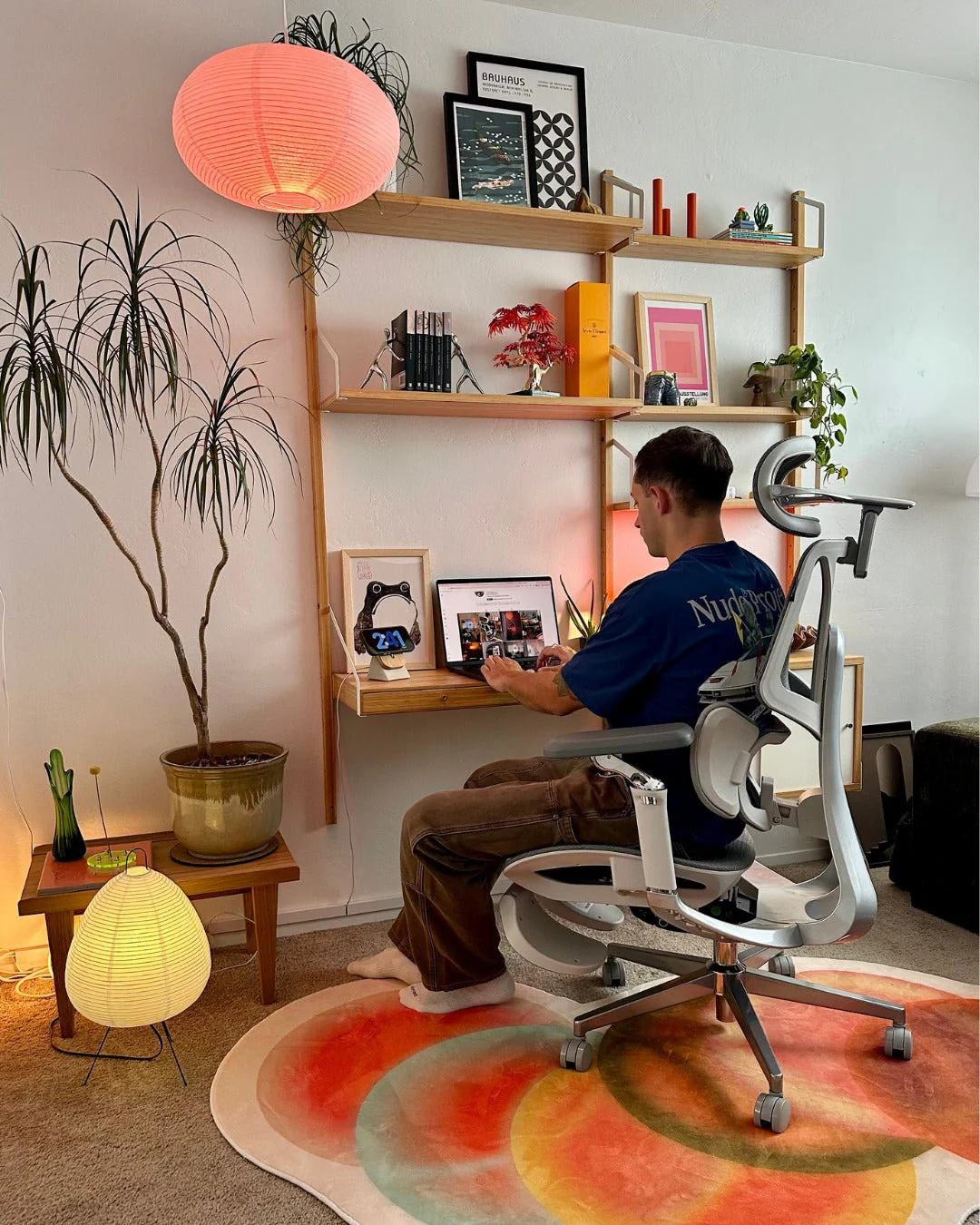
By noon, your fingertips are tingling, and a dull ache is gradually spreading through your wrists—if your hands are going numb from typing all day, the cause might be your chair. Looking for an office chair designed with carpal tunnel syndrome in mind isn't about finding a "magic cure." It's about being able to keep your arms and wrists in a natural, relaxed, neutral position for hours on end. A chair with fully adjustable armrests and appropriate height can help keep your forearms horizontal and your wrists straight. This guide will walk you through which features are important and how to create a complete ergonomic setup to protect your hands.
Can an office chair help alleviate carpal tunnel syndrome?
First, let's clarify what a chair can and cannot do.
Yes, an appropriate office chair can help with carpal tunnel syndrome, but its effect is only indirect. Carpal tunnel syndrome occurs when the median nerve, which passes through a narrow tunnel in the wrist, is compressed, causing numbness, tingling, and pain in the thumb, index, and middle fingers (according to NHS UK). While a chair alone cannot relieve this nerve compression, it can help maintain a posture that keeps your wrists in a neutral position. Adjustable armrests can keep your forearms horizontal, and if your seat height ensures your elbows are at approximately 90 degrees, your wrists will remain straight, reducing strain on the nerve. Conversely, if adjustments are insufficient, the same chair can force your wrists into angles that worsen symptoms.
Essential features for an office chair designed for carpal tunnel syndrome:
Three chair features mainly influence effectiveness. Focus your budget here.
Full Adjustability

Adjustable Armrests
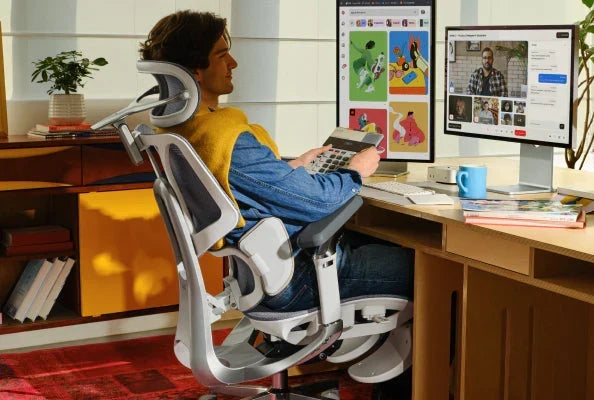
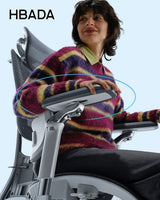
For those who frequently experience wrist strain, adjustable armrests are one of the most crucial features when choosing an office chair. Select armrests that can support your forearms roughly parallel to the floor and at a height close to your desk. This prevents your arms from floating while typing, significantly reducing unnecessary strain on your wrists.
We recommend armrests that offer height adjustment, forward/backward sliding, and inward angle adjustment. Fixed armrests or those with only width adjustment may make it difficult to stabilize your elbows, leading to a posture where you rely on your wrists for support.
Appropriate Seat Height and Depth
Seat height is a critical factor affecting your overall sitting posture. Adjust it so your feet are flat on the floor and your knees are at approximately a 90-degree angle. This will naturally bring your elbows closer to keyboard height.
A chair with adjustable seat depth allows you to sit with your back firmly against the backrest while leaving about two to three fingers' width of space behind your knees. This helps you lean your back against the backrest and avoids perching on the front edge of the seat. Perching can cause you to lean towards your desk, often resulting in a bent wrist posture, which should be avoided.

Lumbar Support and Posture
Lumbar support is surprisingly important when considering wrist strain. Nerves connected to the hands extend from the neck down to the arms, so slouching can disrupt your entire upper body posture, affecting the angle of your wrists.
Proper lumbar support helps you maintain an upright posture at your desk, which in turn allows your shoulders to relax and your forearms to stay horizontal. This forms the foundation for keeping your wrists in a neutral position.
Steps to Create a Comfortable Desk Environment
Even the best chair cannot be fully effective if the overall balance of your desk area is off. Try adjusting things in the following order:
First, Adjust Your Chair
- Adjust the seat height so your feet are flat on the floor and your knees are at approximately a 90-degree angle.
- Sit with your hips pushed all the way back against the backrest, and adjust the seat depth so there are about two to three fingers' width of space between the back of your knees and the front edge of the seat.
- Adjust the lumbar support to fit the curve of your lower back.
- Adjust the armrests to a height where your forearms can rest horizontally and your shoulders are relaxed.
Position Your Keyboard and Mouse
- Position your keyboard horizontally, or with the back slightly lower, so your wrists are straight and not bent upwards.
- Place your mouse right next to your keyboard, at the same height.
- Move the mouse with your entire arm, not just your wrist.
- If your desk is too high, raise your chair and use a footrest instead of shrugging your shoulders to reach.
Adjust Your Monitor Position
- The top third of the screen should be at eye level, and the distance should be about an arm's length.
- This helps prevent leaning forward, which can lead to dropped wrists or rounded shoulders.
Move and Stretch Regularly
Even in an ideal environment, maintaining the same posture for extended periods can still cause strain. For tasks involving long screen time, it's recommended to take short, frequent breaks rather than occasional long ones.
Stand up every 30-60 minutes, gently shake your hands, and stretch your wrists within a comfortable range. It's also important to alternate tasks and avoid prolonged periods of typing or mouse use.
| Body Part | Recommended Position | Why it matters for wrists |
|---|---|---|
| Feet | Flat on the floor or a footrest | Provides a stable base for posture, helping prevent shallow sitting and dropped wrists. |
| Knees | Approx. 90 degrees, thighs roughly parallel to the floor | Serves as a guide for determining appropriate seat height. |
| Elbows | Approx. 90 degrees, close to the body | Helps keep forearms horizontal and wrists in a natural position. |
| Forearms | Parallel to the floor, resting on armrests | Reduces concentrated strain on wrists during typing. |
| Wrists | Straight, in line with forearms | Helps alleviate compression around the wrist. |
| Monitor | Top third of screen at eye level, one arm's length away | Prevents leaning forward and helps keep wrists from bending. |
Recommended Chairs for Those Prioritizing Wrist-Friendly Support
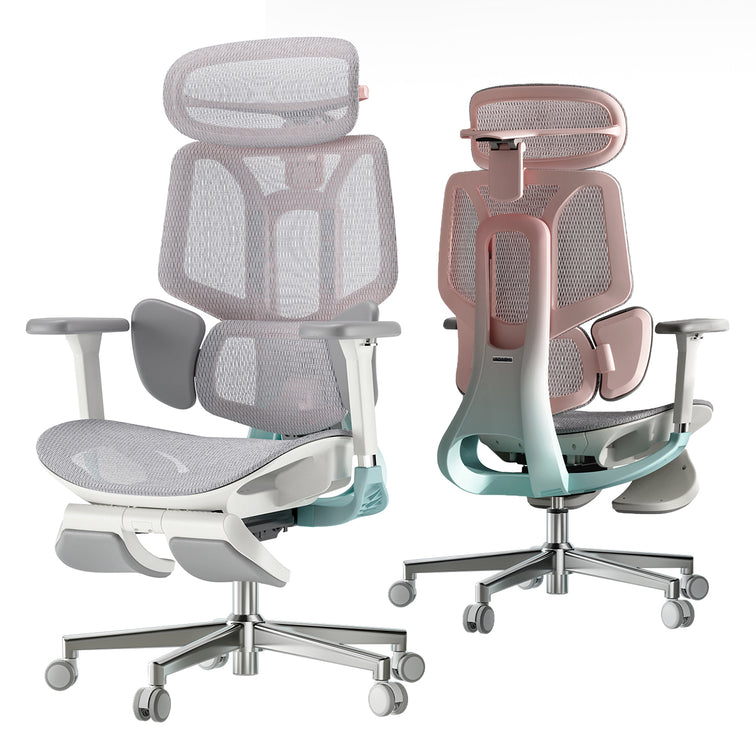
 Our chairs are designed with a strong emphasis on adjustability to help maintain natural wrist positioning. For those who prioritize wrist comfort, we recommend the following two models:
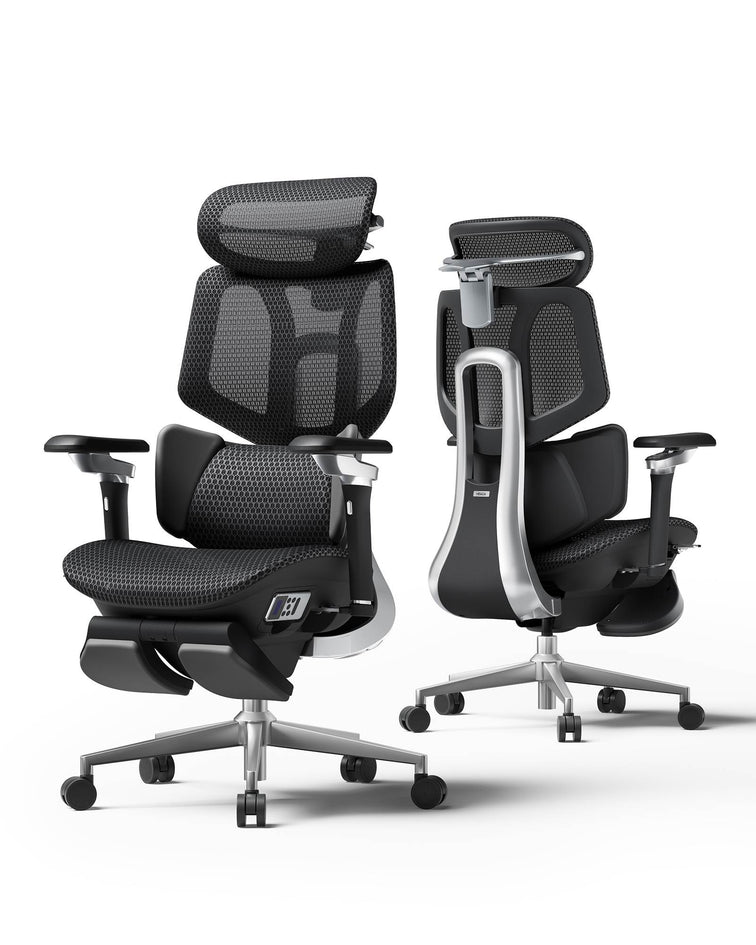
For wrist support, armrests are particularly crucial. HBADA's 720° All-Position Armrests offer more multidirectional adjustment than typical 4D armrests, allowing for finer positioning to support your forearms. Fixed armrests or basic 4D armrests may provide minimal support but struggle with the precise adjustments needed for wrist alignment.
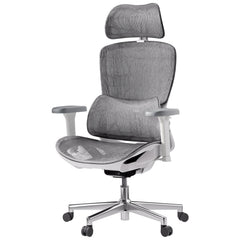
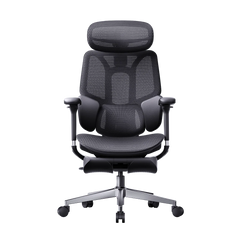
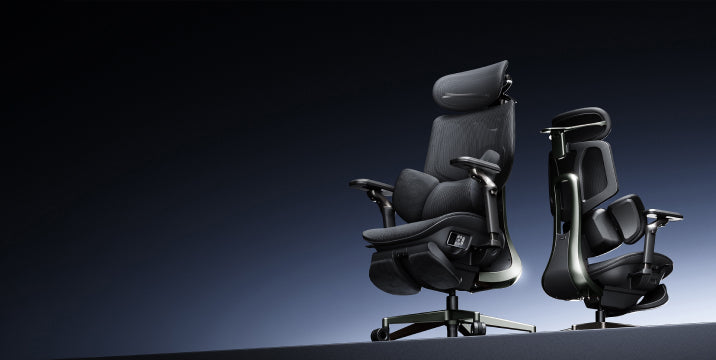
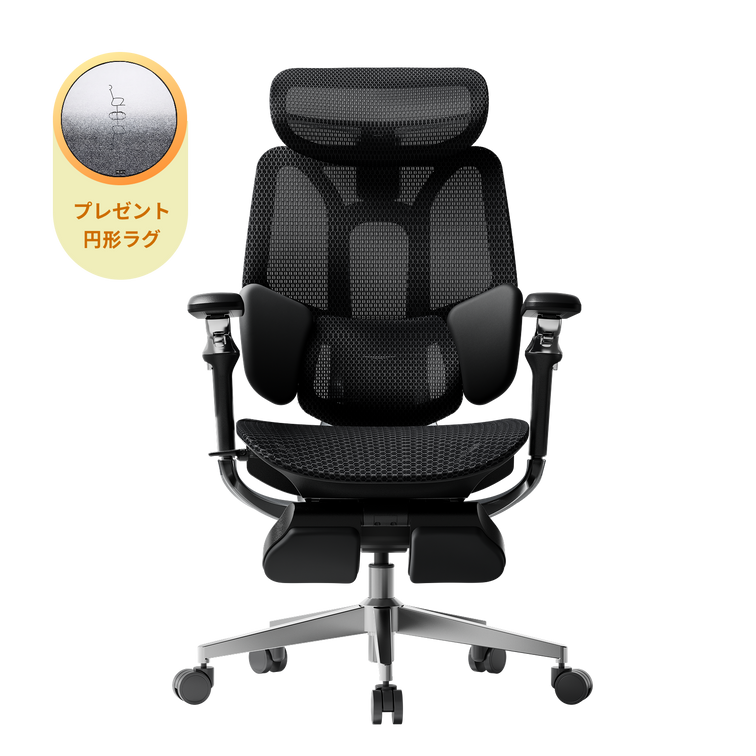
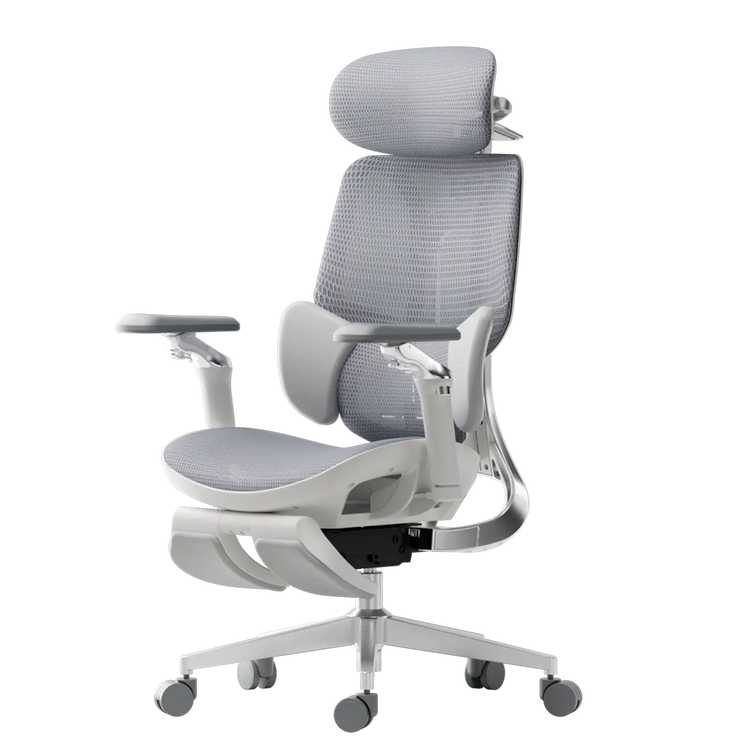
The HBADA AI-Powered X7 features 720° all-position armrests that rotate inward, slide forward/backward, and adjust vertically. Additionally, its AI Smart Lumbar Tracking System accurately detects changes in lumbar posture and adjusts support in real-time. By helping you maintain an upright, desk-facing posture, it provides enhanced comfort for long typing sessions. With a breathable seat and fine seat depth adjustment, this is a smart ergonomic chair for extended work hours.
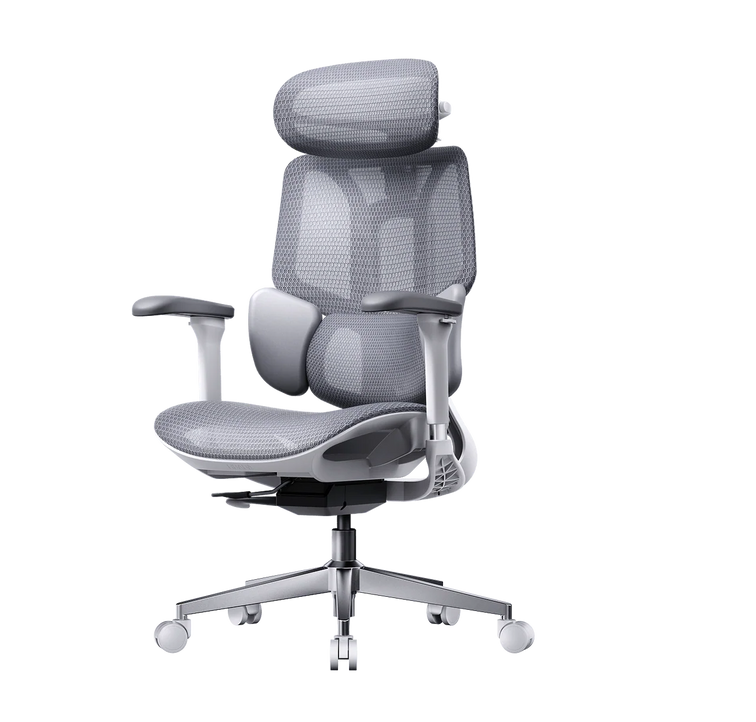
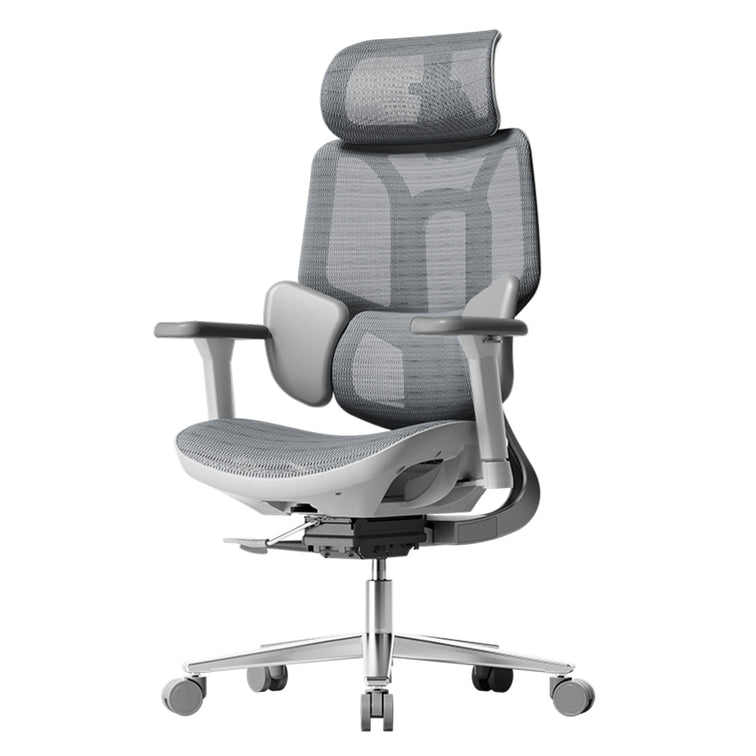
For those seeking solid mechanical adjustments at a more accessible price, the HBADA E3 Pro 2026 Edition is also an excellent choice. Its 720° multidirectional armrests help keep forearms horizontal, and its patented 3-zone elastic lumbar support cradles the L1-L5 spinal area along your lower back curve. With a CloudMesh backrest and 140° recline, it allows for easy posture changes during work and breaks, helping relax your arms and wrists.
| Feature | HBADA AI-Powered X7 | HBADA E3 Pro 2026 Edition |
|---|---|---|
| Armrest (Key for Wrist Support) | 720° All-Position Armrest: Rotation, forward/backward adjustment, height adjustment | 720° Multidirectional Adjustable Armrest |
| Seat Height | Adjustable. Can be set to a height where feet easily touch the floor. | Adjustable. Designed to accommodate taller individuals. |
| Seat Depth Adjustment | Supported | Supported |
| Lumbar Support | AI Dynamic Lumbar Tracking, up to 50mm adjustment | Patented 3-Zone Elastic Lumbar Support. Supports L1-L5 area. |
| Reclining | Deep recline, with automatic balance function | 140° recline, with automatic balance function |
| Comfort Features | 8D Massage, Heating, Cooling Fan | CloudMesh, Sliding Sacral Support |
| Gas Lift | Class 4 Certified – Gas lift resistant to sinking | Class 4 Certified – Gas lift resistant to sinking |
| Recommended For | Those who type for long periods, prioritize fine-tuned fit, and appreciate automatic lumbar support. | Those who value robust build, tall-user accommodation, and premium ergonomic features at a more accessible price point. |
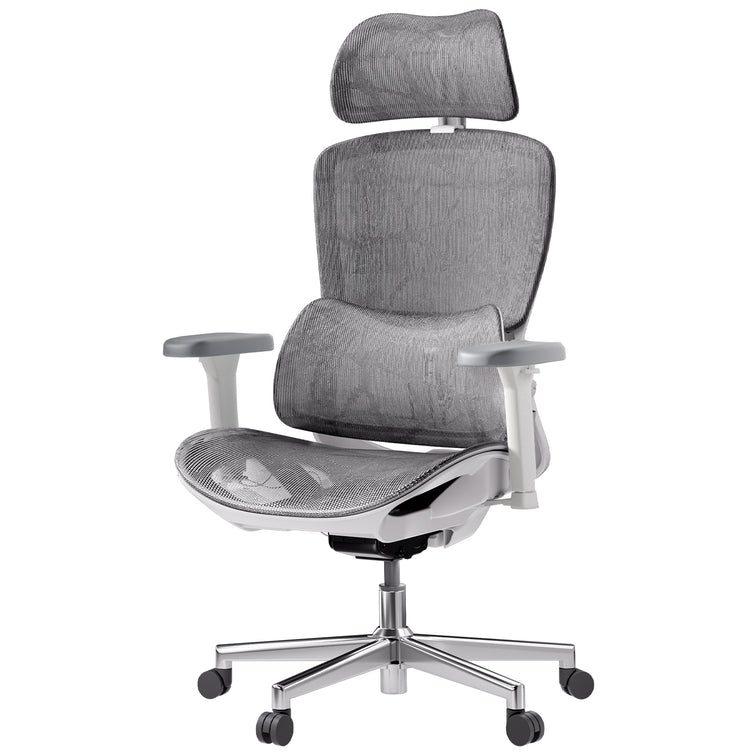
For standard 8-hour workdays or those on a slightly tighter budget, task chairs from the E3 Air and P series are also recommended. Both feature adjustable armrests and full mesh support. You can find detailed specifications on our official website.
Case Study: Programmer Working All Day
Nathan K., 41, a software developer living in Birmingham. Previously, he typed for about 9 hours a day, often with his wrists resting on the edge of the desk. In the evenings, he would experience numbness in his thumb, index, and middle fingers.
He switched to the HBADA E3 Pro 2026 Edition and adjusted the 720° armrests to support his forearms horizontally. This distributed the strain on his wrists, and the 3-zone elastic lumbar support helped him maintain a posture less prone to slouching over the screen. With his wrists more easily kept in a neutral position, the numbness subsided within a few weeks.
Case Study: Petite Illustrator
Sofia M., 30, an illustrator living in Cardiff. With typical chairs, her feet often couldn't reach the floor, and the armrests were too wide, causing her wrists to float while drawing.
She chose the HBADA AI-Powered X7 and adjusted the seat depth and height so her feet were flat on the floor and her elbows were at nearly a 90-degree angle. She further rotated the 720° armrests inward to naturally support her forearms while using her tablet. This helped her maintain proper wrist alignment, and the stiffness in her hands also improved.
When to Consult a Doctor
A chair is a support tool to improve posture and reduce strain; it is not a treatment. If necessary, it's important to consult a professional.
Creating an ergonomically sound environment can help alleviate wrist strain, but it won't cure severe nerve compression that already exists. If your symptoms are intense, wake you up at night, persist for several weeks, or you feel a weakening grip, please consult a doctor or healthcare provider. Early intervention is crucial. Your doctor may suggest wrist splints, injections, or, in severe cases, procedures to relieve nerve compression.
Which Office Chair Should You Choose?
It's important to choose based on your physique and work style.
- For those who type for long hours, want finer adjustments for armrests and seat, or prioritize automatic lumbar support, the HBADA AI-Powered X7 is recommended.
- For those seeking robust mechanical adjustments, a design suitable for taller individuals, and premium ergonomic features at a more accessible price point, the HBADA E3 Pro 2026 Edition is recommended.
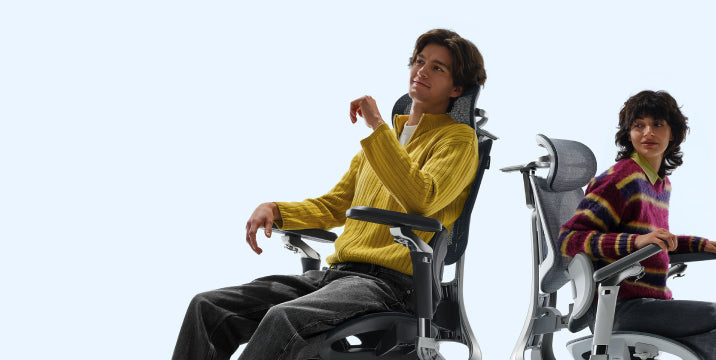
- Regardless of your choice, it's crucial to adjust the armrests to a position where your forearms are supported horizontally and your wrists are kept straight.
So, what kind of office chair is suitable for those concerned about wrist strain? The key is to make it easy to maintain a natural wrist position throughout the day. Sufficiently adjustable armrests, appropriate seat height, and stable support are crucial. Adjust your chair correctly and take regular breaks to move, creating an environment that cares for your hands.
Frequently Asked Questions
Can an office chair help reduce wrist strain?
It can help as indirect support. While an office chair doesn't treat arm or wrist conditions, an appropriate chair can make it easier to maintain a natural wrist position and help alleviate wrist strain. Adjustable armrests support your forearms, making it easier to keep your wrists straight while typing. Additionally, setting the correct seat height helps keep your elbows at approximately 90 degrees. Combined with proper keyboard, mouse, and monitor positioning and regular breaks, it can help reduce wrist strain.
How should I adjust my chair if I'm concerned about wrist strain?
Adjust from the bottom up. Adjust the seat height so your feet are flat on the floor and your knees are at about 90 degrees. Sit with your hips pushed all the way back against the backrest, and adjust the seat depth so there are about two to three fingers' width of space between the back of your knees and the front edge of the seat. Next, adjust the lumbar support to fit the curve of your lower back. Finally, adjust the armrests to a height where your forearms can rest horizontally, close to your desk, and your shoulders are relaxed. This helps keep your wrists straight and supports your entire arm.
Are armrests good for my wrists, or do they cause strain?
If adjustable armrests are correctly set up, they can help reduce wrist strain. The role of armrests is to support your forearms roughly parallel to the floor, preventing strain from concentrating on your wrists during typing. Height is crucial. Matching the armrest height to your desk helps relax your shoulders and maintain a natural wrist position. Conversely, fixed or poorly positioned armrests can cause shrugged shoulders or floating elbows. Therefore, the presence of adjustment features makes a significant difference.
What is the ideal sitting posture to avoid wrist strain?
Aim for a natural, well-supported posture. Keep your feet flat on the floor, knees at about 90 degrees, and elbows close to your body at roughly a right angle. Rest your forearms horizontally on the armrests, and keep your wrists straight, in line with your forearms, without bending them up or down. Lean your back against the lumbar support to maintain an upright posture, and avoid leaning forward towards the screen. Remember that even with a good posture, maintaining the same position for too long can cause strain, so it's important to change positions and stretch regularly.
Can an ill-fitting chair lead to arm and wrist discomfort?
An improperly adjusted chair may not directly cause symptoms. However, maintaining postures that strain the wrists for extended periods can contribute to discomfort or worsen existing issues. Conditions such as a seat that is too high or too low, a lack of armrests, or a tendency to slouch can place undue stress on the wrists and arms. Adjusting a chair to fit your body correctly can help reduce such strain.